Your cart is currently empty!


Canon recommends that repairs be performed by authorized service technicians to ensure safety and proper operation. According to Canon USA, printers that have been opened or repaired by unauthorized parties may be returned unrepaired by official service centers.
Repairs or modifications done by unauthorized technicians may also void the manufacturer’s warranty. While basic maintenance such as replacing toner or clearing paper jams can be done by users, internal or complex repairs should be handled by trained professionals.
Get a Professional Authorized Service Technician to Fix Your Printer
Paper jams are one of the most frequent printer issues, especially in high-volume environments.
How to fix it
Always use the paper type and size recommended by the manufacturer. Overloading paper trays or using warped or damaged paper increases the chance of jams.
It also helps to keep the printer interior clean. Dust and debris can build up around rollers and paper paths, causing sheets to misfeed. Regularly cleaning feed rollers and fanning the paper stack before loading it can prevent multiple sheets from feeding at once.
If jams keep happening, the feed rollers may be worn and should be replaced.
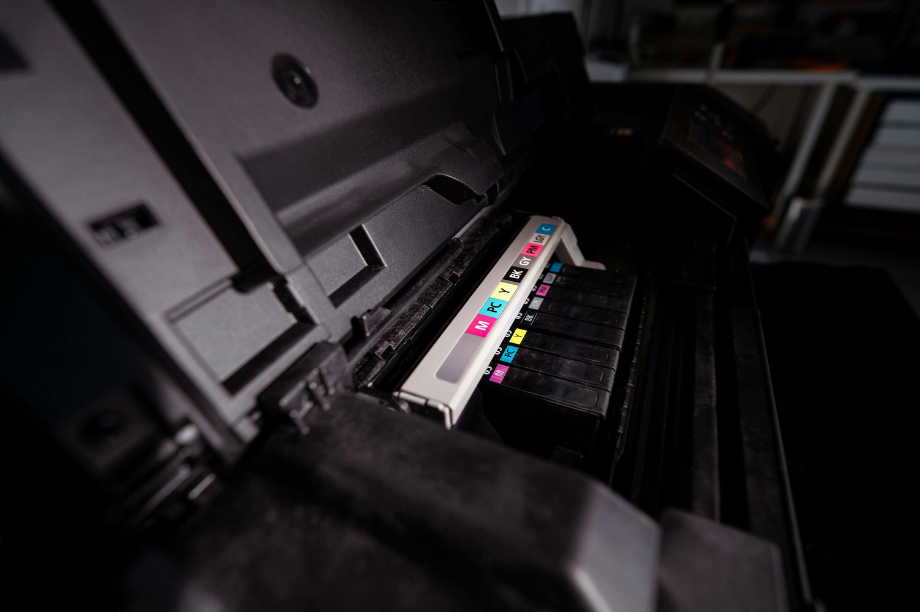
Faded prints, streaks, smudges, or inconsistent colors are usually related to toner, ink, or print head issues.
How to fix it
Start by checking toner or ink levels. Low cartridges often cause uneven prints or missing sections. Replacing or refilling cartridges may immediately solve the issue.
Cleaning the print heads can also remove blockages that cause streaking or banding.
Using the correct paper for the print job also makes a difference. Low quality or incompatible paper can affect how ink or toner adheres to the page.
If the problem continues, professional servicing may be needed to inspect internal components.
Sometimes the printer simply refuses to print, even when jobs are sent to it.
How to fix it
Check both physical and network connections. Loose cables or network interruptions can stop communication between the computer and printer.
Restarting both the printer and the computer often resets the connection.
You should also confirm that the correct printer drivers are installed and updated. Clearing the print queue can remove stuck jobs that prevent new ones from processing.
When a printer that used to be fast suddenly slows down, it can affect office workflow.
How to fix it
High resolution settings can significantly increase processing time. Lowering the print resolution for everyday documents often speeds things up.
Network speed also plays a role. A slow or unstable network can delay large files being sent to the printer.
For large format printers and plotters, additional memory upgrades can help improve performance when handling complex drawings or graphics.
Modern printers display error codes when something goes wrong, but these messages can sometimes be confusing.
How to fix it
Consult the printer manual or manufacturer documentation to understand what the error code means.
In many cases the solution may involve updating firmware, adjusting paper settings, or resolving a hardware warning such as an open door or empty tray.
If the message continues appearing, a technician may need to diagnose the underlying issue.
Ghosting appears when faint images or text from a previous print appear on the current page.
How to fix it
This issue is often related to the drum or imaging unit inside the printer. If these components are worn, they may need replacement.
Power fluctuations can also contribute to ghosting, so ensure the printer is connected to a stable power source.
Using the correct paper type and print settings can further reduce ghosting effects.
A printer may appear offline even though it is physically connected and powered on.
How to fix it
Verify that the printer and computer are connected to the same network. Restarting both devices can often restore communication.
Check that the printer is set as the default device and that offline mode is not enabled in printer settings.
Updating or reinstalling printer drivers may also resolve persistent offline errors.
If printed pages come out with toner that smears easily, the fuser unit may not be heating properly.
How to fix it
Inspect the fuser assembly for signs of wear or damage. A worn fuser will need replacement to properly bond toner to the paper.
Using the correct type of paper is also important, since some materials require different temperature settings.
Always allow the printer to cool before attempting any internal maintenance around the fuser unit.
When printers struggle to pull paper from the tray or feed multiple sheets at once, feed mechanisms may be the cause.
How to fix it
Cleaning the feed rollers helps remove dust that reduces grip on the paper.
Make sure the tray is not overloaded and that the paper guides are adjusted correctly.
If feed rollers are worn out, replacing them can restore smooth paper movement.
Double sided printing problems often appear as jams, misaligned pages, or incomplete prints.
How to fix it
Confirm that duplex printing is enabled correctly in the printer settings.
Paper thickness also matters. Extremely thin or thick paper may not feed properly during double sided printing.
Routine maintenance and inspection of internal mechanisms can help prevent duplex errors.
Get a Professional Authorized Service Technician to Fix Your Printer